An iPhone that suddenly displays a temperature warning and refuses to function. A device running unusually hot during a phone call in peak summer. A battery draining twice as fast as it should with no obvious reason. All of these trace back to the same underlying issue — thermal management — and knowing how to monitor your iPhone’s temperature gives you the ability to diagnose and respond before the problem compounds.
Here’s what’s genuinely important to know upfront: Apple does not provide a native temperature display anywhere in iOS. There is no screen, no widget, no settings panel that shows you a live numerical temperature reading. What Apple does provide is a protective warning system that activates when the device crosses safe operating limits. Everything beyond that involves third-party apps, analytical data, and physical measurement. Each method serves a different purpose, and together they give you a complete picture.
Apple’s Safe Operating Temperature Range
Apple specifies that iPhones operate normally within an ambient temperature range of 0°C to 35°C (32°F to 95°F). The ideal storage temperature when the phone is off extends to -20°C to 45°C. These figures represent the environment around the phone, not the internal component temperature — processors and batteries run warmer than their surroundings during active use.
When the internal temperature climbs beyond safe thresholds, the iPhone doesn’t just slow down — it initiates a deliberate thermal shutdown sequence to protect its components. Understanding the warning signs of this process is the first practical layer of temperature monitoring.
Method 1: Apple’s Built-in Temperature Warning Screen
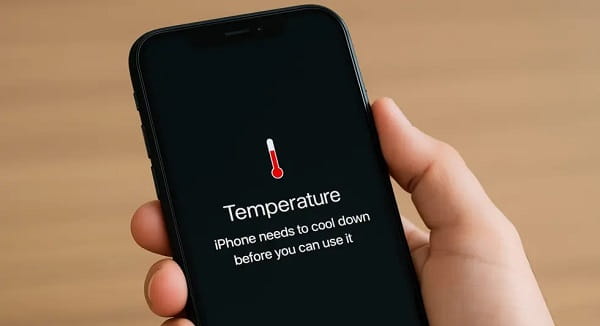
When an iPhone overheats to a point requiring immediate intervention, iOS replaces the normal screen with a black background displaying a temperature warning icon and the message: “iPhone needs to cool down before you can use it.”
This is Apple’s most direct temperature alert. The phone becomes largely non-functional in this state — calls may still connect through speakerphone if a call was active, but everything else pauses until the device cools. The phone is actively protecting itself from heat-related component damage.
If you see this screen, move the iPhone away from direct sunlight immediately, remove any case to allow heat dissipation, and let it rest in a cool environment. Avoid placing it in a refrigerator — rapid temperature changes create condensation inside the device, which causes separate damage.
Method 2: Battery Health as a Thermal Indicator
While not a real-time temperature reading, Settings → Battery → Battery Health & Charging reveals the consequence of sustained thermal exposure. Open this path and look at the Maximum Capacity percentage.
Battery capacity degrades faster when a device regularly operates at high temperatures. An iPhone that’s been consistently overheated over months shows accelerated capacity drop compared to a similar-age device kept cool. A maximum capacity significantly below 90% on a device under two years old often signals a history of thermal stress.
Additionally, a message may appear in this section stating “Your iPhone has experienced an unexpected shutdown because the battery was unable to deliver the necessary peak power.” This is a direct thermal and battery stress indicator — not just a general warning.
Method 3: Third-Party Apps — Battery Life and CPU Dasher X
The App Store carries several apps that read battery temperature data exposed through iOS system APIs. Two consistently reliable options are Battery Life and CPU Dasher X.
After downloading either app, open it and navigate to the battery information section. The battery temperature reading displayed reflects the current temperature of the battery cell itself — typically the most heat-sensitive component in the phone. A healthy battery at rest reads around 25°C to 35°C. During charging it naturally rises to 30°C to 40°C. Values consistently above 40°C during light use signal a thermal concern worth investigating.
These apps do not measure processor temperature directly — iOS’s privacy and security architecture restricts direct hardware sensor access for third-party apps. What they read is battery-adjacent thermal data, which closely correlates with overall device temperature since the battery and processor sit in close proximity inside the chassis.
Method 4: Analytics Data — Average Temperature Reading
For users who want a deeper, data-based look without installing any app, iOS logs device analytics that include battery temperature readings. This method requires enabling analytics first.
Go to Settings → Privacy & Security → Analytics & Improvements and ensure Share iPhone & Watch Analytics is turned on. After 24 hours, return to the same screen and tap Analytics Data. Open the most recent analytics log file — it has a date-stamped name. The file contains raw data. Copy the entire contents, paste them into the Notes app, then use Find in Note to search for AverageTemperature. The value returned is your battery’s average logged temperature in degrees Celsius.
This method takes a few minutes but produces genuine logged thermal data directly from the iPhone’s own internal records — no third-party access to hardware required.
Method 5: Infrared Thermometer for Surface Temperature
When the concern is about how hot the phone feels physically — particularly relevant after extended gaming sessions, navigation use, or wireless charging — an infrared thermometer gives an accurate surface reading without any software.
Point the thermometer at the back of the iPhone, specifically the area just above the Apple logo where the logic board and battery sit closest to the surface. A normal iPhone surface during light use reads around 28°C to 36°C. During heavy load or fast charging, surface temperatures of 38°C to 42°C are common and generally harmless. Readings above 45°C on the surface consistently correlate with internal temperatures that stress components over time.
Common Causes of iPhone Overheating
Several situations reliably push an iPhone beyond normal thermal limits. Extended GPS navigation with the screen at full brightness ranks highest — the processor, screen backlight, and cellular radio all run simultaneously at high output. Gaming for more than 30 minutes generates significant heat from the GPU. Fast charging generates heat in the battery and charging circuit. Direct sunlight on the device surface — particularly inside a parked car — can push ambient temperatures far beyond the 35°C safe limit within minutes.
Using a heavy case during charging traps heat that would otherwise dissipate through the aluminium chassis. Removing the case during wireless charging meaningfully reduces peak temperatures.
FAQs
Q: Does iOS show iPhone temperature as a number anywhere?
A: No. Apple does not expose a numerical temperature readout in iOS. Third-party apps reading battery temperature data and the built-in overheating warning screen are the available options.
Q: What temperature is considered too hot for an iPhone?
A: Apple’s operating limit is 35°C ambient. Internal battery temperatures consistently above 40°C during light tasks or above 45°C surface readings indicate thermal stress worth addressing.
Q: Can overheating permanently damage an iPhone?
A: Yes. Sustained high temperatures accelerate battery degradation, reduce maximum capacity permanently, and in extreme cases can damage the logic board. Apple’s thermal shutdowns are specifically designed to prevent this.
Q: Does putting an iPhone in the fridge cool it down safely?
A: No. Rapid temperature change causes internal condensation that damages electronics. Move the phone to a cool, dry indoor environment and let it cool naturally.
Q: Why does my iPhone get hot during charging?
A: All charging generates some heat. Fast charging and wireless charging generate more. Using a non-MFi-certified charger can cause irregular power delivery that generates additional heat. Remove the case and charge in a cool location to minimise thermal buildup.