Every developer who works with Java — whether building Android apps, running enterprise software, or just studying the language — eventually hits a moment where something doesn’t run as expected and the first question asked is: what Java version do you actually have installed? The answer lives inside your Command Prompt, and reaching it takes about ten seconds. But understanding what the output means, and knowing what to do when it throws an error instead, matters just as much as running the command itself.
Opening Command Prompt
Before anything else, you need CMD open. There are three ways to do this on Windows:
Method 1: Press Windows + R on your keyboard. A small Run dialog box appears. Type cmd and press Enter. The black Command Prompt window opens instantly.
Method 2: Click the Start menu, type cmd in the search bar, and click Command Prompt from the results.
Method 3: Right-click the Start button and select Terminal or Command Prompt from the quick-access menu — available on Windows 10 and Windows 11.
All three open the same environment. Once the black window is open with a blinking cursor, you’re ready.
The Core Command: java -version
Type the following exactly as shown and press Enter:
java -version
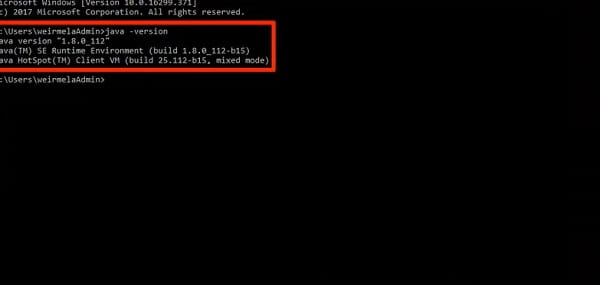
If Java is installed correctly and configured on your system’s PATH, the output appears within a second. A typical response looks like this:
openjdk version “21.0.2” 2024-01-16
OpenJDK Runtime Environment Temurin-21.0.2+13
OpenJDK 64-Bit Server VM Temurin-21.0.2+13 (mixed mode, sharing)
Or on older systems:
java version “1.8.0_291”
Java(TM) SE Runtime Environment (build 1.8.0_291-b10)
Java HotSpot(TM) 64-Bit Server VM (build 25.291-b10, mixed mode)
Reading this output correctly matters. The first line contains the version number. In the older format — 1.8.0_291 — the number after the decimal point (8) represents Java 8. Modern Java versions display directly: version “21.0.2” means Java 21, which is the current Long Term Support release widely used across professional environments.
The second line describes the Java Runtime Environment (JRE) — the layer that allows Java programs to run. The third line shows the Java Virtual Machine (JVM) details, including whether it’s running in 64-bit mode, which applies to virtually all modern systems.
Checking the Java Compiler Version
Developers who write and compile Java code — not just run it — need the Java Development Kit (JDK) installed in addition to the runtime. To verify the compiler version, run this separate command:
javac -version
The output shows the compiler version:
javac 21.0.2
If java -version works but javac -version throws an error, the JDK is not installed — only the JRE is present. Running Java programs will work, but compiling .java source files won’t. Developers specifically need the full JDK.
What If You Get an Error?
The most common error response looks like this:
‘java’ is not recognized as an internal or external command,
operable program or batch file.
This happens for one of two reasons. Either Java genuinely isn’t installed on the system, or it is installed but the system’s PATH environment variable doesn’t include Java’s bin folder, so CMD can’t find it.
To check if Java is installed but just missing from PATH, run this in CMD:
dir “C:\Program Files\Java”
If a Java folder appears in the results, Java exists on your machine but needs its path configured. To fix it permanently, search for Environment Variables in the Windows Start menu, open it, find the Path variable under System Variables, click Edit, and add the full path to your Java installation’s bin folder — for example: C:\Program Files\Java\jdk-21\bin.
After saving, close CMD and open a fresh window. Always open a new CMD session after any installation or PATH change — existing windows don’t pick up the updated settings.
Checking Java Version in PowerShell
The same java -version command works identically in Windows PowerShell. If you prefer PowerShell over CMD, open it through the Start menu or the right-click Start button menu and run the same command. The output format is identical.
Checking Java Version on Mac and Linux
For Mac users, open Terminal from Applications → Utilities and type java -version. Same command, same output format. On Linux distributions, open the terminal and run the same command. The javac -version check works identically across all three platforms.
Why Knowing Your Java Version Matters
Software compatibility is the primary reason. Many frameworks and tools specify minimum Java version requirements — Spring Boot 3.x requires Java 17 or higher, Apache Kafka 4.x requires Java 11 minimum, and several Android build tools have specific JDK version dependencies. Running the wrong version causes cryptic errors that are easy to misdiagnose if you don’t first confirm what’s actually installed.
Security is the second reason. Older Java versions carry unpatched vulnerabilities. Java 8 — still widely installed on older enterprise machines — reached its free public update end-of-life for Oracle distributions years ago. Knowing your version tells you whether your Java installation is current enough to receive security patches.
FAQs
Q: What is the latest Java version in 2026?
A: Java 21 is the current Long Term Support (LTS) release, widely used in production environments. Java 23 and 24 are more recent feature releases, though LTS versions are preferred for stability.
Q: What is the difference between JRE and JDK?
A: The JRE runs Java programs. The JDK includes the JRE plus the compiler and development tools needed to write and build Java code. Developers need the JDK; end users only need the JRE.
Q: Can I have multiple Java versions installed on the same machine?
A: Yes. Multiple JDK versions can coexist. Tools like SDKMAN on Mac and Linux, or manually configured PATH variables on Windows, let you switch between versions as needed.
Q: Why does java -version show a different version than what I just installed?
A: Your PATH variable is still pointing to the older installation. Open a fresh CMD window after installation and verify the PATH includes the new version’s bin folder.
Q: Does java -version work on all Windows versions?
A: Yes — Windows 7 through Windows 11, as long as Java is installed and PATH is configured correctly.